
Secure your MyCare Account with Two-Step Verification
We're adding an extra layer of security to protect your health information. When you log into MyCare, you'll need to complete a simple two-step verification process.
What is Two-Step Verification?
Along with your username and password, you'll receive a special 6-digit code sent to your phone or email when you log in to MyCare.
This extra step makes it much harder for anyone else to get into your account, even if they know your password.
How do I login using Two-Step Verification?
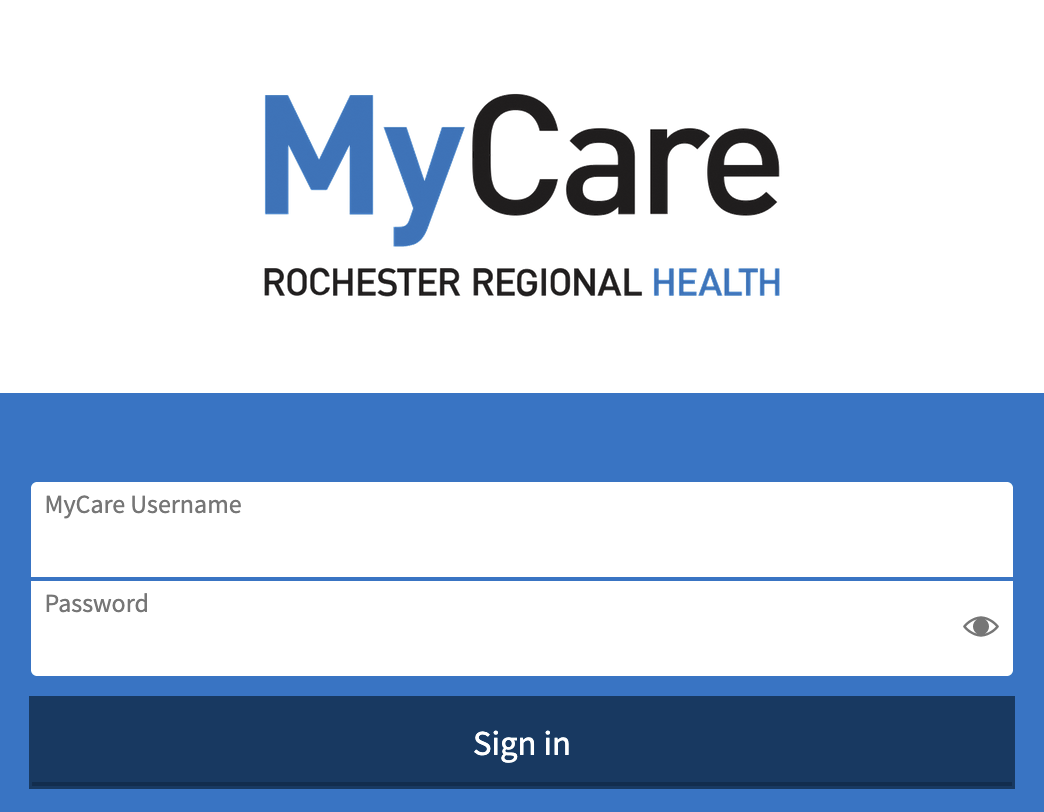
Step 1: Enter your login information
- Log in with your usual MyCare username and password
- You might be asked to confirm your email address and phone number
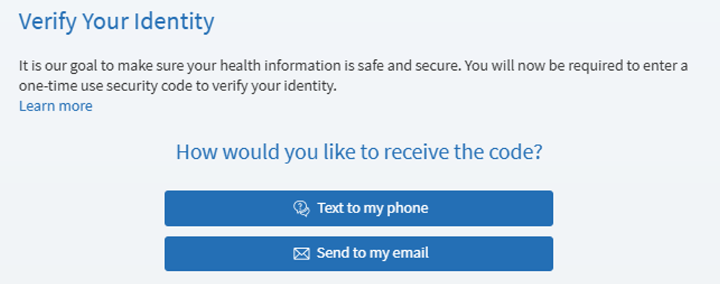
Step 2: Choose how to receive your security code
- Select whether you want the code sent by text message or email
- Keep the MyCare page open while you get your code—don't close it or you'll need to select "Resend Code" and request a new code
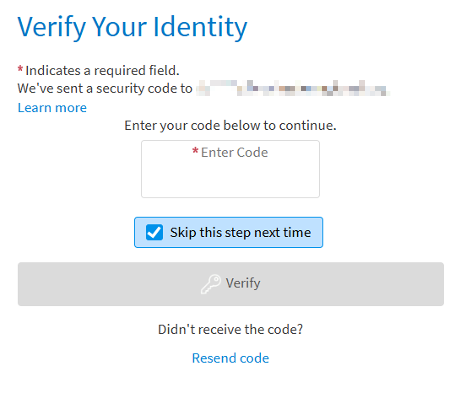
Step 3: Get and enter your code
- Check your phone or email for a 6-digit code
- Enter the code on the "Verify Your Identity" page
- Make sure to keep "Trust this device" checked so you won't need to do this again for 30 days
- Click "Verify" to finish logging in
If you need assistance with two-step verification, please contact the MyCare Helpdesk at mycare@rochesterregional.org or (585) 922-1234.
- Using a web browser: Open a new browser tab or use a separate device to access your email.
- Using the MyCare app: Keep the app open while checking your email or text messages for the verification code
The one-time use code expires after 10 minutes. If you have not received the code within that time, please confirm that you are using the mobile phone number associated with your MyCare account.
If you need assistance, please contact the MyCare Helpdesk at mycare@rochesterregional.org or (585) 922-1234.
No, you can set up MyCare to remember the device you are using to login for 30 days. By keeping the pre-selected option "Trust this device", MyCare will remember the device or internet browser you are using to log in for 30 days. Unchecking the "Trust this device" box will prompt you to enter a verification code each time you log in using that device or internet browser.
Each time you log in from a new device or internet browser, or if you have cleared cookies on your device, you will be prompted to enter a verification code to confirm your identity.
Create a passkey
Passkeys provide a more secure way to login to your account by allowing you to bypass two-factor authentication using your device’s built-in security like a PIN, fingerprint or Face ID.
- Passkey is available when logging in to MyCare from a browser.
- Once your passkey is set up you can login using username and password or the Log in with passkey button on the MyCare login page.
- Login to MyCare using your username, password and two-factor authentication
- Go to Menu > Account Settings > Manage passkeys
- Click Add new passkey and follow the prompts
- Once set up, you can click the pencil icon to edit or rename the passkey
- Instead of using your username and password, click Log in with passkey.
- Unlock your passkey using your chosen identification method – a PIN, fingerprint, Face ID, etc.
- Go to Menu > Account Settings > Manage passkeys > Passkey Management
- Under the specific Passkey you want to remove, click Remove passkey.
- Remove the passkey from your password manager (iCloud Keychain, Password Manager, etc) for full removal.
No. Users with passkeys can choose to log in using their username and password (with two-step verification) or log in with a passkey.
Download the MyCare App
Download the MyCare App to put your health information in the palm of your hand. The MyCare app helps you conveniently manage care for yourself and your family members. Available on both the Google Play Store and the Apple App Store.